Adding the Recall Data Connector
- Navigate to the Data Connectors page in the Cloudglue app.
- Click the Recall data connector card.
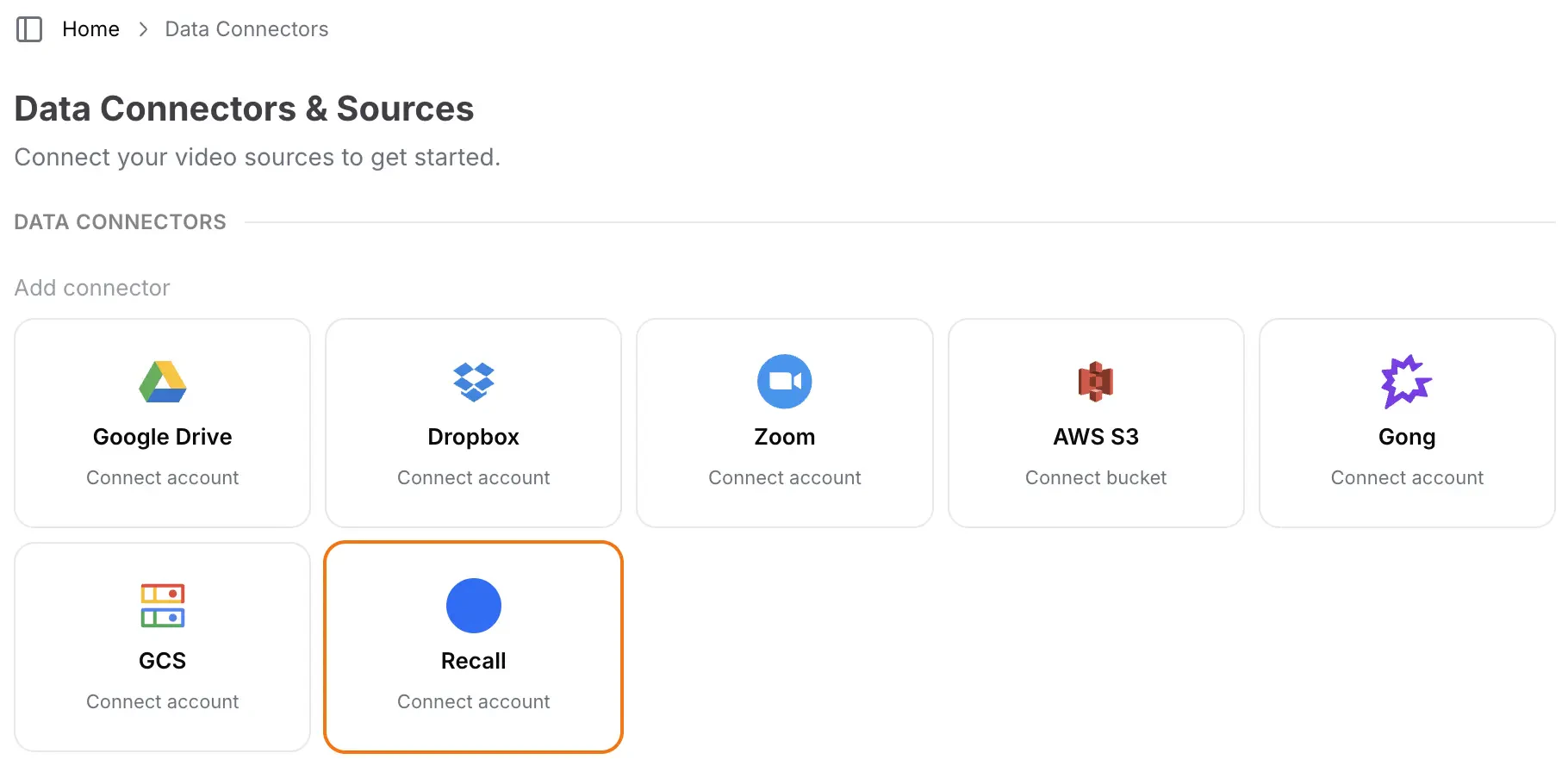
- Follow the popup instructions to authorize Cloudglue access to your recordings.
- Verify the connection by checking for the Connected indicator on the card.
Ready to set up your Recall data connector? Visit our
app to get started.
Need help setting up your data connector? Contact our team directly for
assistance with the setup process.
Using Recall with Cloudglue
To use Recall.ai recordings with Cloudglue, you can use therecall://recording/{recording_id} prefix in your Cloudglue API requests.
Example:
Browsing and filtering recordings
GET /data-connectors/{id}/files
lists recordings from your Recall account, and from/to filter by recording
creation date.
has_more is true, pass the
response’s next_page_token back as page_token (with the same filter
parameters) until it returns null.
Recall’s list API exposes no meeting title, so items are named
Recall Recording {id}; the title (when Recall has one) appears as meeting_title
inside each item’s metadata. title_search is ignored for Recall.
Recordings of every status are listed — check metadata.status_code; only
done recordings can be synced.Source metadata
When a Recall recording is imported, Cloudglue captures the recording’s source metadata onto the resulting file undersource_metadata: timestamps
(created/started/completed/expires), status, meeting title and platform when
available, artifact availability flags (has_transcript, has_audio,
has_participant_events), the capturing bot’s id, and any custom metadata you
attached to the bot in Recall. Signed artifact download URLs are never stored.
The source_metadata field is returned on the
file object.
GET /data-connectors/{id}/source-metadata
previews a recording’s source metadata without importing it:
UI Importing for Testing
Use the Cloudglue integration UI to quickly import Recall files for testing your endpoints.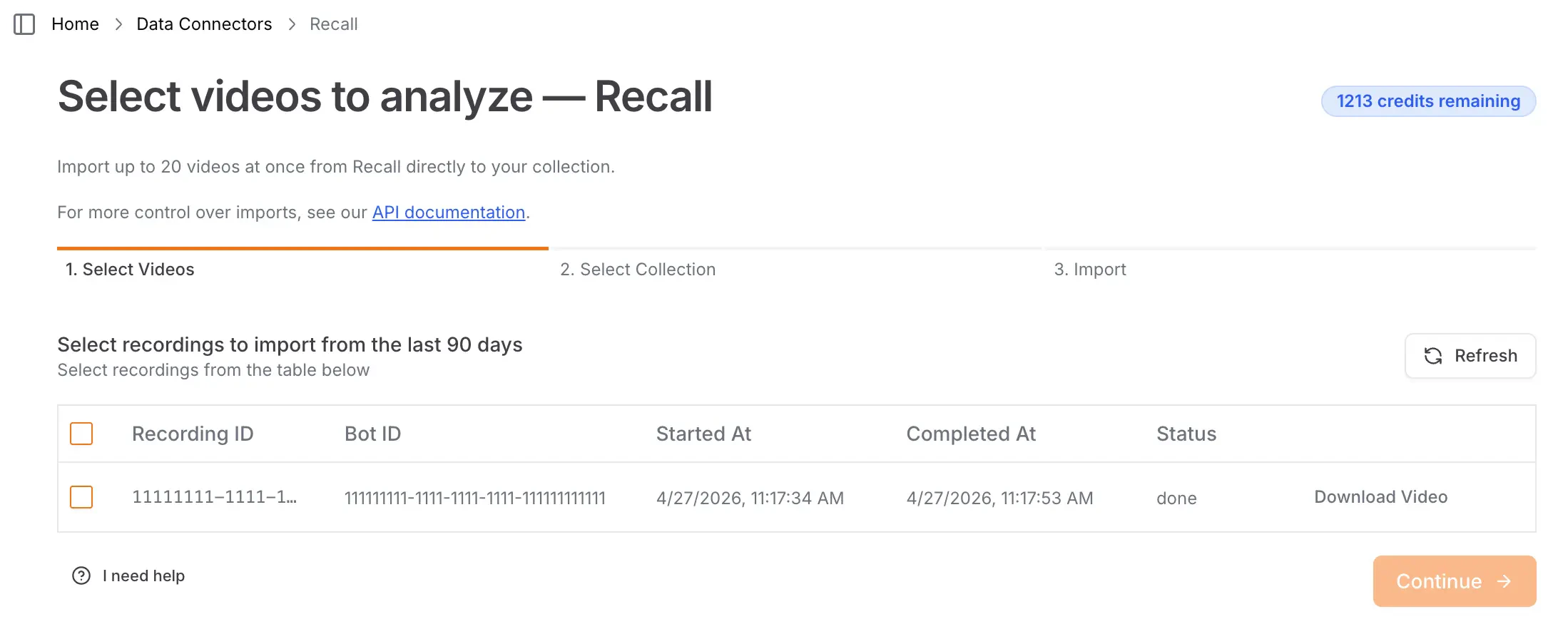

Managing Access
You maintain full control over your data access. To remove the Recall Data Connector, visit the Data Connectors page and click Disconnect under Recall. Once removed:- You cannot import new recordings into Cloudglue until you reconnect.
- Any recordings you previously imported will remain in Cloudglue. These can be viewed and deleted from File Management.
Security
Cloudglue uses your Recall.ai API key to securely access your recordings. This approach:- Maintains your control - You own and manage the connector. Revoke the API Key at any time to stop Cloudglue from accessing your recordings.