Adding the Google Drive Data Connector
- Navigate to the Data Connectors page in the Cloudglue app.
- Click the Google Drive data connector card.
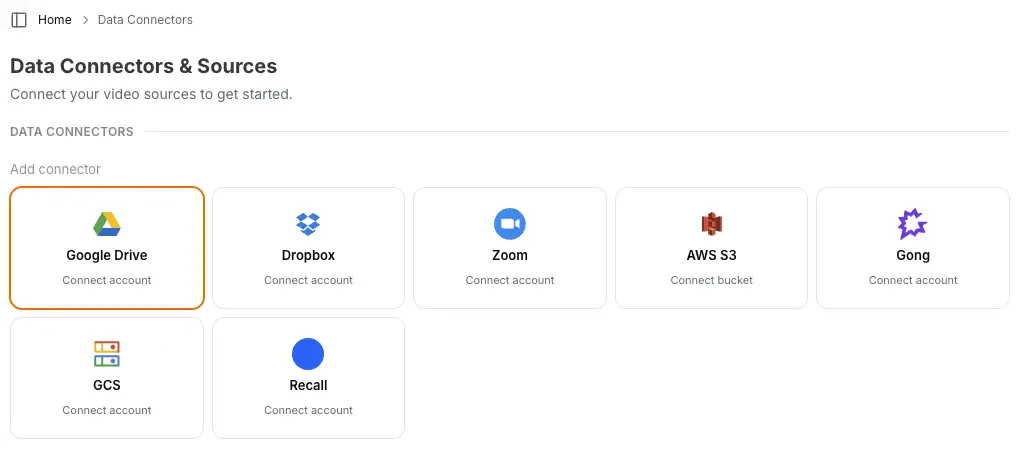
- Follow the popup instructions to authorize Cloudglue access to your media.
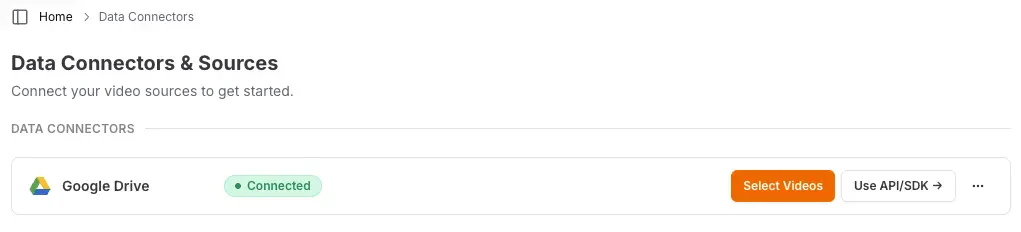
- Verify the connection by checking for the Connected indicator on the card.
Ready to set up your Google Drive data connector? Visit our
app to get started.
Need help setting up your data connector? Contact our team directly for
assistance with the setup process.
Using Google Drive files with Cloudglue
To use Google Drive files, you can use thegdrive://file/ prefix in your Cloudglue API requests, or paste a Google Drive file link directly — both forms are accepted everywhere and deduplicate to the same Cloudglue file.
Accepted formats:
Links must point to a single file. Google Drive folder links
(
drive.google.com/drive/folders/...) are not supported and return a 400.
Drive links resolve through your connected Google Drive account, so a
connector is required.Browsing and filtering files
When listing connector files,title_search matches file names and from/to filter by Drive creation
date — both natively via Drive’s query API. folder_id (from a folder entry’s
metadata) drills into folders.
Source metadata
When a Drive file is imported, Cloudglue captures the file’s source metadata onto the resulting file undersource_metadata: name, MIME type, size,
created/modified times, owners and last modifying user, parent folders,
sharing status, MD5 checksum, web view link, and Drive’s video metadata
(duration/dimensions) when available. Short-lived signed URLs (like thumbnail
links) are never stored. The source_metadata field is returned on the
file object, and the same shape
appears in each file entry’s metadata while browsing.
GET /data-connectors/{id}/source-metadata
previews a file’s source metadata without importing it:
UI Importing for Testing
Use the Cloudglue integration UI to quickly import Google Drive files for testing your endpoints.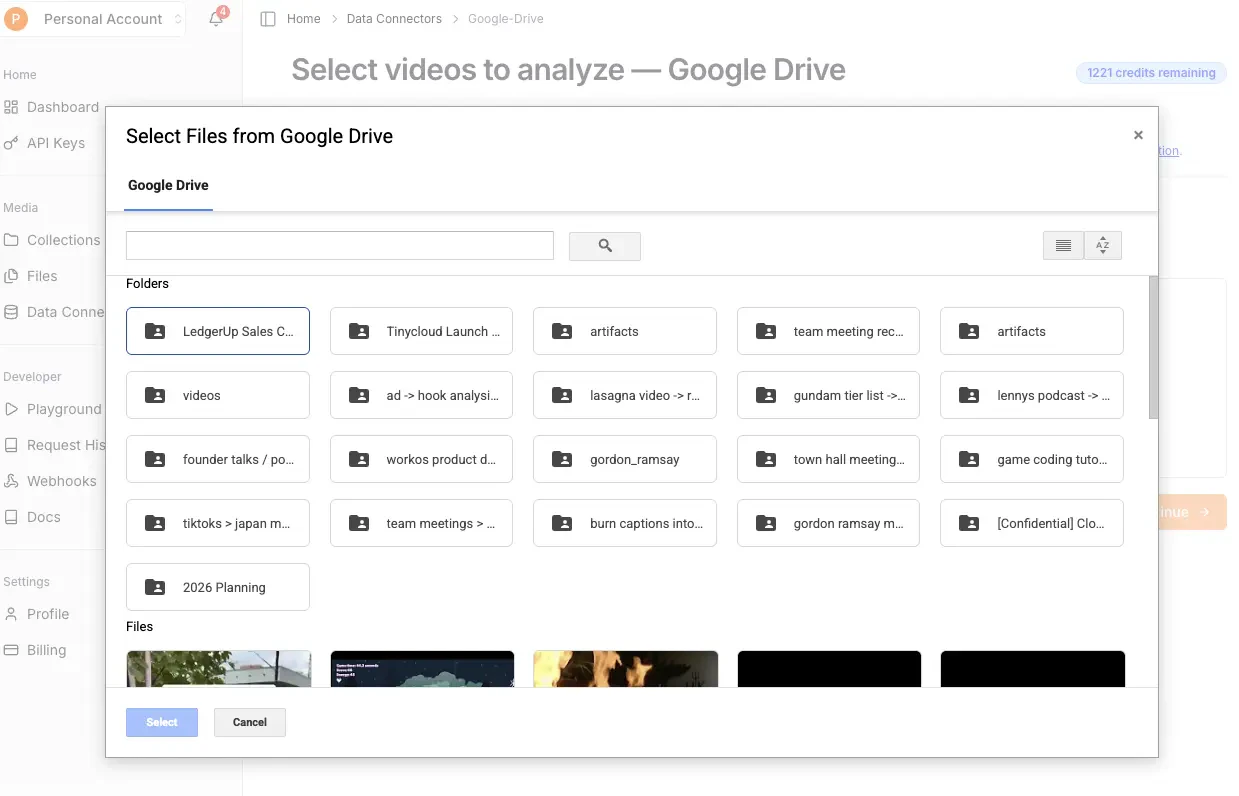
Managing Access
You maintain full control over your data access. Remove this data connector by doing the following:- Remove connection by revoking the connector on our website.
- You cannot import new recordings into Cloudglue until you reconnect.
- Any recordings you previously imported will remain in Cloudglue. These can be viewed and deleted from File Management.
Security
Cloudglue uses Google Drive Authentication to get limited access to your files. This approach:- Maintains your control - You own and manage the connector.
- Follows Google Drive security patterns - Uses standard Google Drive authentication with minimum permissions.
- Easy to revoke - Simply delete the connector on our website.