Adding the Dropbox Data Connector
- Navigate to the Data Connectors page in the Cloudglue app.
- Click the Dropbox data connector card.
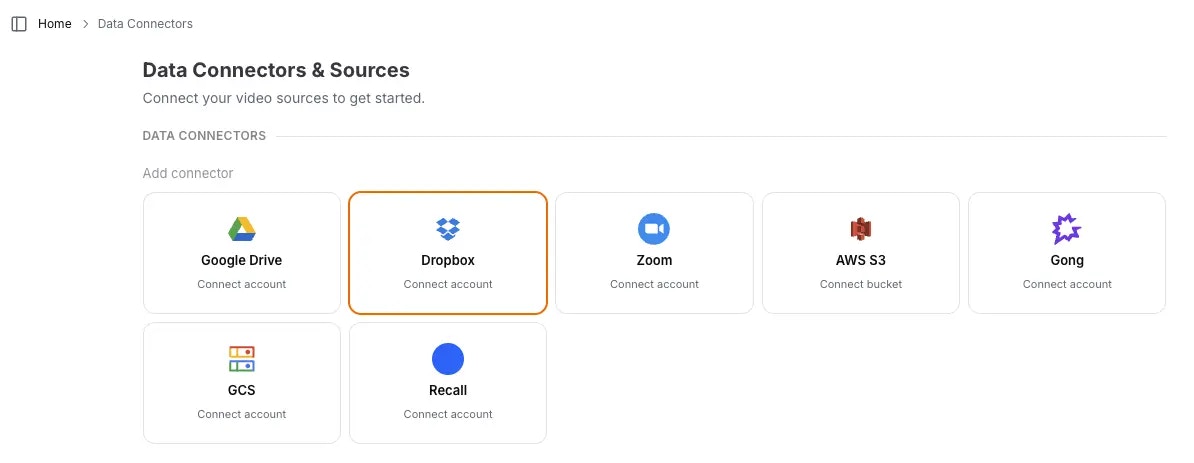
- Follow the popup instructions to authorize Cloudglue access to your Dropbox account.
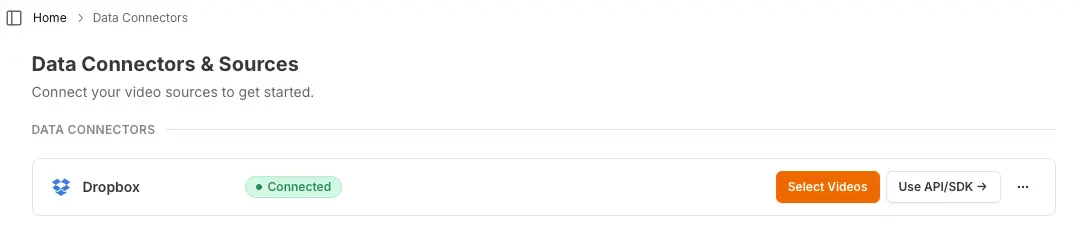
- Verify the connection by checking for the Connected indicator on the card.
Ready to set up your Dropbox data connector? Visit our
app to get started.
Need help setting up your data connector? Contact our team directly for
assistance with the setup process.
Using Dropbox with Cloudglue
We offer a couple of ways to use your Dropbox files with Cloudglue.Option 1: Share Links via API
We support Dropbox file share links — the links you get from Share → Copy link on a file in Dropbox. Example:- General endpoints (describe, transcribe, extract, add to collection): the link is downloaded anonymously, so it must be publicly accessible. Login-gated or expired links return a
403explaining the access problem. - Connector sync (
POST /v1/data-connectors/{id}/syncon a Dropbox connector): the link is resolved through your connected account’s access, so it also works for files that require login, as long as the connected account can access them.
st= parameter each time a link is copied) deduplicates to a single Cloudglue file.
Share links must point to a single file. Folder share links
(
/scl/fo/...) are not supported and return a 400.Option 2: Custom URI via API
To use Dropbox files via our API that Cloudglue has access to, you can use thedropbox:// prefix in your Cloudglue API requests. This is the URI format returned by GET /v1/data-connectors/{id}/files — you can pass those URIs back verbatim.
Example:
Browsing and filtering files
When listing connector files,title_search matches file names and from/to filter by the file’s
client_modified date (matched while paging — Dropbox has no native filters).
path (from a folder entry’s metadata) drills into folders.
Because these filters are matched while paging, a filtered page can contain
fewer than
limit items — even zero — while more matches remain. Keep
paginating until next_page_token is null rather than stopping at the first
short or empty page.Source metadata
When a Dropbox file is imported, Cloudglue captures the file’s source metadata onto the resulting file undersource_metadata: name, paths, size,
client/server modification times, revision, content hash, and — for video —
media_info with duration and dimensions. The source_metadata field is
returned on the file object.
media_info is only captured at sync/lookup time: Dropbox’s list endpoint
stopped returning media info, so items seen while browsing carry null there.
Public dl.dropboxusercontent.com URLs ingested without the connector carry
no source metadata at all (there’s no API metadata for anonymous links).GET /data-connectors/{id}/source-metadata
previews a file’s source metadata without importing it (works with
dropbox:// paths and share links). URL-encode the url parameter — real
paths can contain spaces, &, #, or percent-encoded characters:
UI Importing for Testing
Use the Cloudglue integration UI to quickly import Dropbox files for testing your endpoints.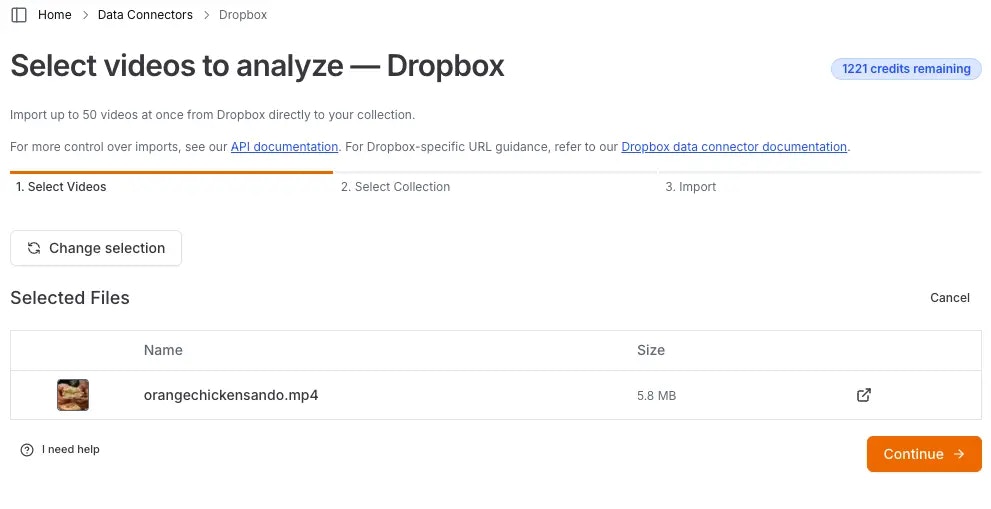
Managing Access
You maintain full control over your data access. Remove this data connector by doing any of the following:- Revoke access by deleting the Dropbox app from your Dropbox account.
- Remove connection by revoking the connector on our website.
- You cannot import new videos from Dropbox until you reconnect.
- Any videos you previously imported will remain in Cloudglue. These can be viewed and deleted from File Management.
Security
Cloudglue uses the Dropbox app to access your files. This approach:- Maintains your control - You own and manage the app.
- Follows Dropbox security patterns - Uses standard Dropbox app access.
- Provides granular permissions - Only grants the minimum access needed.
- Easy to revoke - Simply delete the app or modify permissions.