Working with Files
Uploading Files
Web App
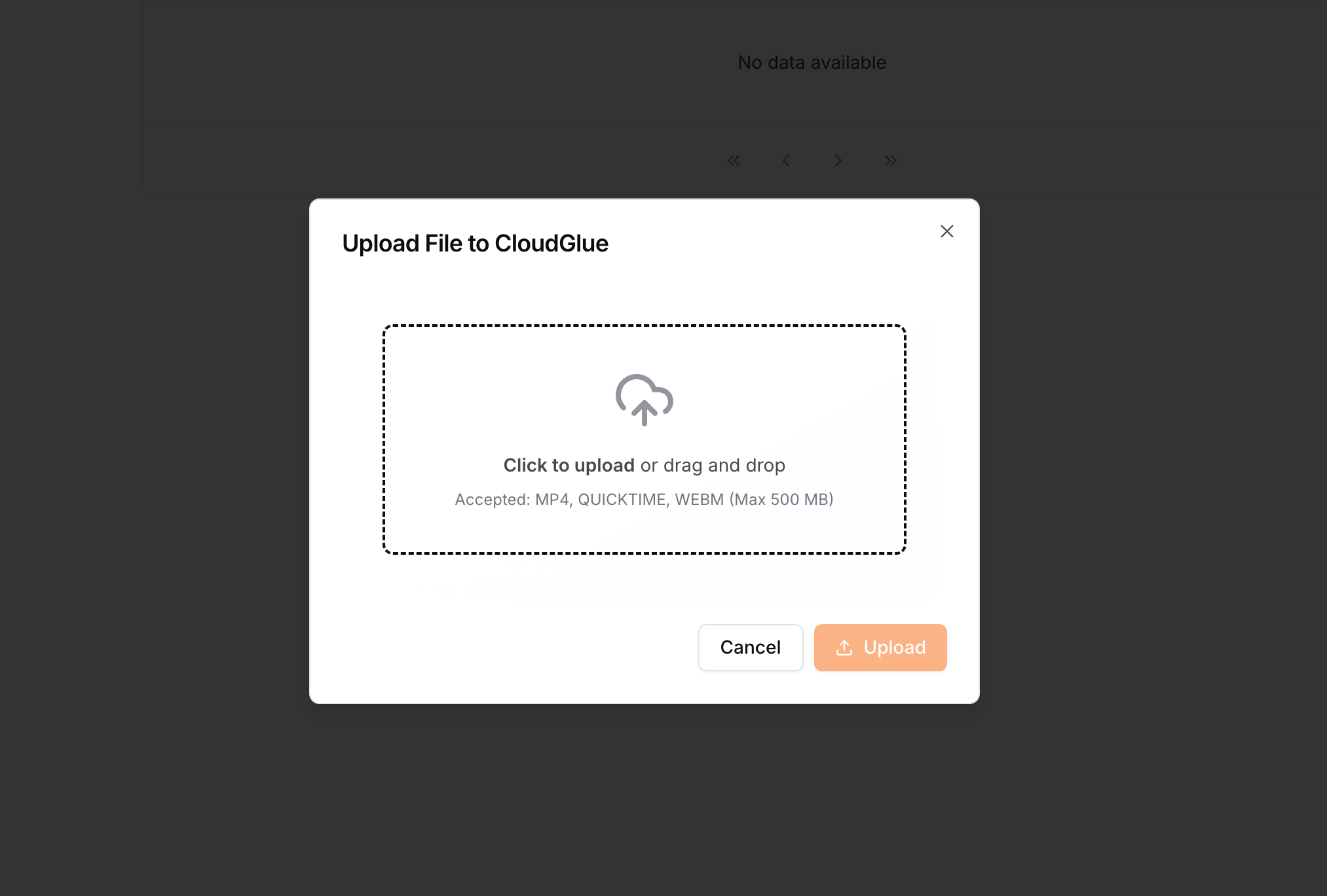
The Cloudglue web app allows you to upload files by dragging and dropping them into the web app or by selecting them from your file system.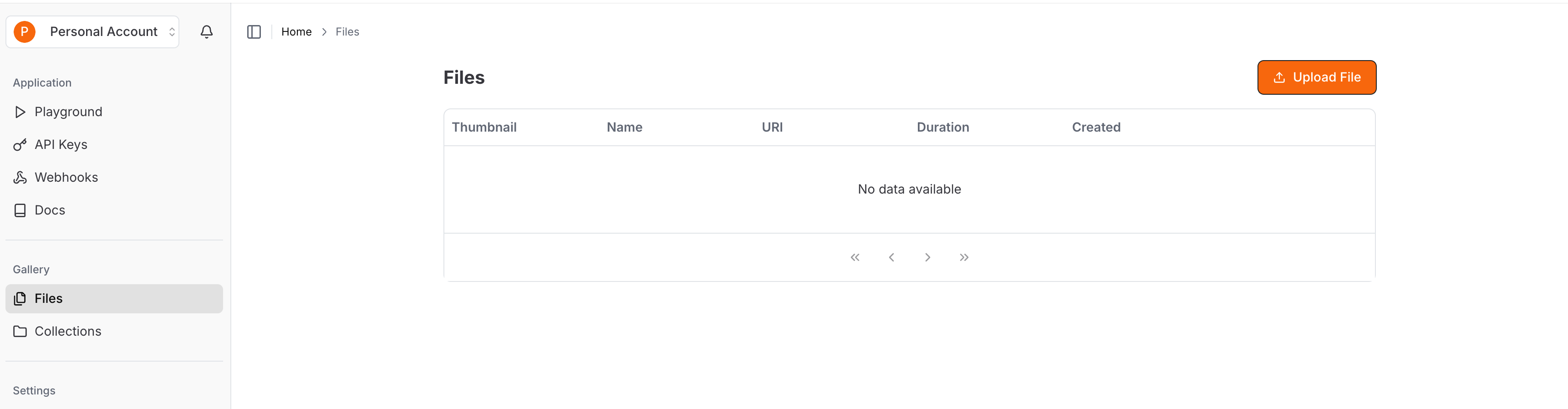
API
You can also upload files via our Files API.Example
SDKs
You can also use our SDKs to upload files to Cloudglue.Example
- Node
- Python
File Metadata
When uploading a file, you can pass in metadata. This metadata is for your own reference. You can use this to store your own custom data, such as identifiers or names from your own system. When you retrieve a file, the metadata is included in the response.Example
- Node
- Python
- cURL
Response
File Status
Cloudglue is inherently asynchronous. We use thefile status to indicate the current status of the file.
The possible values are:
pending- The file is pending and has not been processed yet.processing- The file is being processed.completed- The file has been processed successfully.failed- The file failed to process.
getFile method.
Example
- Node
- Python
- cURL
Response
Webhooks
To listen for file status updates asynchronously, you can use our webhooks. You can provide an endpoint to listen to the following file events:file.job.processing- When a file is being processed.file.job.completed- When a file has been processed successfully.file.job.failed- When a file has failed to process.file.job.deleted- When a file is deleted.
File Limits & Requirements
Size Limits
- Maximum file size: 2 GB per file
- Local upload limit: 250 MB for uploads via web app or files API
- Larger local uploads may fail or lead to slow processing times
- For files larger than 250 MB, use a data connector such as AWS S3
Duration Limits
- Minimum duration: 2 seconds
- Maximum duration: 2 hours
- Files longer than 2 hours must be split into multiple parts before uploading
- Each part must still respect the 2 GB size limit
Upload Limits
We do not charge you for the storage of your files. However, we do have some limits in place to prevent abuse. To see the limits, please see the Rate Limits page.Higher Limits
If you need larger file sizes or expect to upload many large files, contact us to discuss custom limits.Supported File Types
Cloudglue supports the following file types:Video Files
video/mp4video/quicktimevideo/avivideo/webmapplication/octet-stream
Audio Files
audio/mpeg(MP3)audio/mp4(M4A, AAC)audio/wavaudio/x-wavaudio/flacaudio/oggaudio/webm
Image Files
image/jpegimage/pngimage/webpimage/heicimage/heif
Audio File Processing
Audio files are processed using the transcript by default for speech-based analysis. For comprehensive audio analysis including music, sound effects, and ambient sounds, you can enableenable_audio_description in your describe configuration.
- Transcript-only mode (default): Uses transcript for title/summary generation. Best for podcasts, interviews, and speech-heavy content. Faster and more cost-effective.
- Audio description mode (
enable_audio_description: true): Uses Gemini for comprehensive audio analysis including speech, music, sound effects, and ambient sounds. Best for rich audio content with significant non-speech audio.
Audio files cannot be added to face-analysis collections since facial analysis
requires visual content.
Optimal File Formatting
To ensure fast processing and reliable playback, uploaded videos should follow these industry-standard encoding parameters. We will start rejecting non-standard inputs in the future:Transcoding with ffmpeg to ideal video format
Use ffmpeg to convert your source video into a supported format:- Uses H.264 video codec
- Limits width to ≤1920px while maintaining aspect ratio
- Encodes stereo AAC audio at 192k bitrate
- Puts MP4 metadata at start for faster streaming
Checking Video Specifications
Use this script to check if your video meets the recommended specifications:Splitting Large Videos
If your video is longer than 2 hours or larger than 2 GB, split it into compliant chunks:Best Practices Summary
- For quick experiments: Use local uploads for files under 250 MB
- For larger files: Set up a data connector such as AWS S3
- Before uploading: Ensure files are 2 seconds to 2 hours duration and ≤2 GB
- For optimal performance: Use MP4 with H.264 video, AAC audio, ≤1080p resolution
- For long videos: Split into chunks using ffmpeg and track parts with metadata
- Always check: Use ffprobe to verify file specifications before upload